

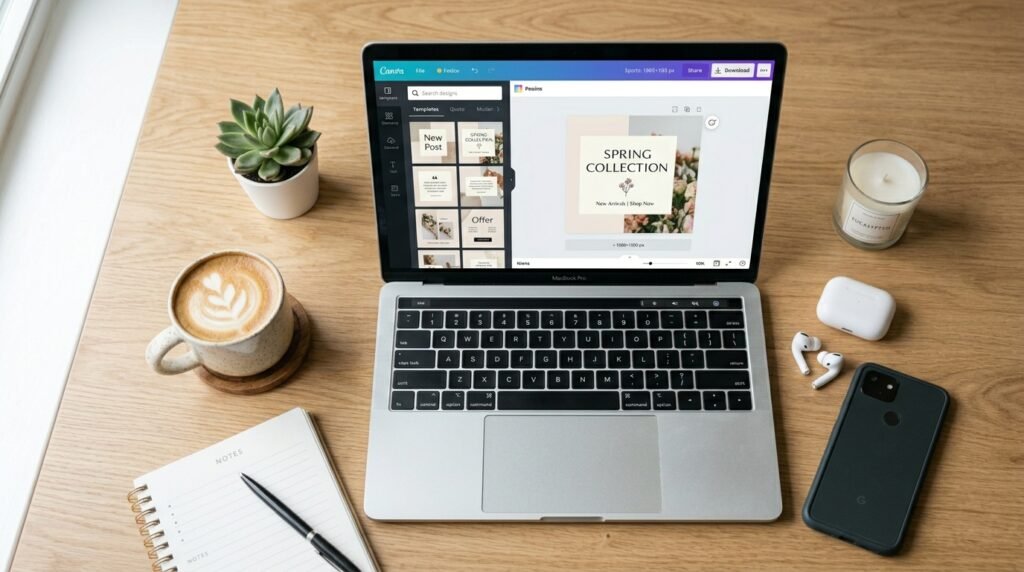
A Canva tutorial helps you learn how to create designs without stress. Canva is a simple design tool that works on browser and mobile. You can make social media posts, resumes, flyers, presentations, videos, and even websites.
Here’s the thing. Most beginners feel lost at the start. Too many buttons. Too many options. This guide fixes that.
You will learn:
- How Canva works from zero
- How to design step by step
- How to export files correctly
- How to use Canva for real work
- How to avoid common mistakes
This guide is for students, freelancers, business owners, and anyone who wants simple design skills.
What Canva Does
Canva is an online design tool. You drag, drop, edit, and publish.
It replaces complex software like Adobe Photoshop for many simple tasks.
Free vs Pro
| Feature | Free | Pro |
| Templates | Yes | More |
| Photos | Yes | Premium |
| Brand Kit | No | Yes |
| Background remover | No | Yes |
| AI tools | Limited | Full access |
Free version is enough for beginners.
Best Uses
- Social media posts
- YouTube thumbnails
- Business flyers
- Resumes
- Presentations
- Short videos
- Simple websites
What this really means is Canva fits almost every daily design need.
Create Your Canva Account
Getting started is simple.
Steps:
- Sign up with Google or email
- Log in
- Open dashboard
You can also install mobile or desktop apps for faster access.
Learn the Canva Dashboard
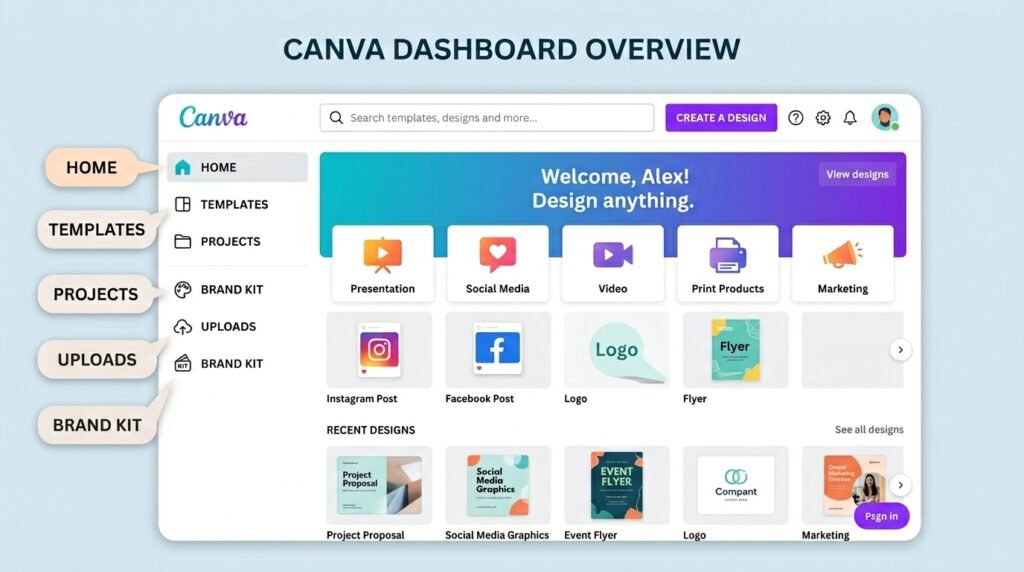
The dashboard is your control room.
Main Areas
| Section | Purpose |
| Home | Recent designs and templates |
| Templates | Ready-made designs |
| Projects | Saved work |
| Brand Kit | Colors, fonts, logos |
| Uploads | Your files |
Everything stays organized here, so you don’t lose your work.
Start a Design
You have two options.
Option 1: Use Templates
Best for speed. Just pick and edit.
Option 2: Blank Canvas
Best for full control.
Choose Correct Size
| Use Case | Size |
| Instagram post | 1080 × 1080 |
| YouTube thumbnail | 1280 × 720 |
| A4 print | 210 × 297 mm |
Wrong size leads to poor results, so choose carefully.
Edit Text
Text makes or breaks a design.
What to do:
- Add headings
- Add subheadings
- Adjust spacing
- Choose clean fonts
Good fonts:
- Poppins
- Montserrat
- Open Sans
Keep it simple. Two fonts are enough.
Add Images and Elements
Canva gives many visual tools.
You can add:
- Photos
- Icons
- Shapes
- Frames
- Uploads
Use high-quality images only. Low quality weakens your design.
Colors and Layout
Good design depends on balance.
Basic rules:
- Use 2 to 3 colors
- Leave white space
- Avoid clutter
- Keep alignment clean
Colors should support your message, not distract from it.
Resize and Adjust
These tools help you fix layout issues.
- Crop unwanted parts
- Flip images
- Align elements
- Duplicate items
- Adjust position
Small adjustments improve overall design quality.
Save, Share, and Download
Canva gives flexible export options.
File types
| Format | Use |
| PNG | High-quality graphics |
| JPG | Small file size |
| Printing | |
| MP4 | Videos |
Simple rule:
- Social media → PNG
- Print → PDF Print
- Video → MP4
UK Print Guide
If you print wrong, the design loses quality.
Key points:
- Use A4 or A5 size
- Always select PDF Print
- Add bleed for safety
- Add crop marks for cutting
Print checklist:
- No spelling errors
- High-resolution images
- Correct margins
- Proper file type
Mobile and Desktop Use
Canva works on all devices.
Mobile:
- Quick edits
- Social posts
- Easy uploads
Desktop:
- Better control
- Faster editing
- Large projects
Mobile is for speed. Desktop is for deep work.
Canva for Real Work
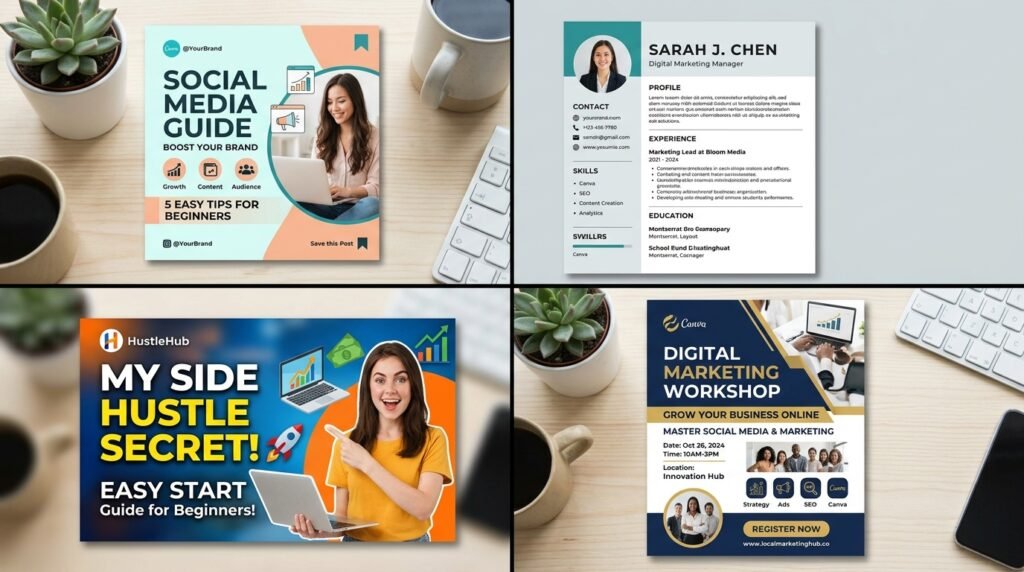
Canva is used in many jobs.
Common uses:
- Social media marketing
- Flyers for business
- Resume building
- School presentations
- Video editing
- Basic logos
Many users replace Microsoft PowerPoint with Canva for simple presentations.
Speed Tips
Small habits save time.
- Use templates
- Duplicate pages
- Save brand colors
- Group elements
- Use shortcuts
Shortcuts like copy, paste, undo, and delete make work faster.
Brand Kit
Brand Kit keeps everything consistent.
You store:
- Colors
- Fonts
- Logos
- Images
This helps businesses stay professional across all designs.
Canva AI and New Tools
Canva now includes smart tools.
Features:
- AI writing help
- Magic design tools
- Background remover
- Video editor
- Content resizing
These tools reduce manual work and save time.
Common Mistakes
Avoid these:
- Too many fonts
- Low-quality images
- Messy layout
- Wrong export format
- Ignoring print bleed
Simple designs usually perform better.
FAQ
Is Canva free?
Yes. The free plan works well for beginners.
Is Canva good for beginners?
Yes. It is one of the easiest tools to learn.
Can I use Canva for print?
Yes, but always use PDF Print.
Can I make videos in Canva?
Yes. It supports full video editing.
Can I use Canva on mobile?
Yes. Mobile app is fully functional.
How to learn Canva step by step?
Start with templates, then text, then images, then full projects.
Is Canva beginner friendly?
Yes. Drag-and-drop makes it simple.