

Most WordPress mistakes start with small decisions that look harmless in the beginning. A cheap hosting plan, too many plugins, weak passwords, or poor SEO settings may not seem serious at first. However, over time, these problems slow down your site, hurt rankings, damage user trust, and reduce conversions.
Here’s the thing. WordPress itself is not usually the problem. Most issues happen because site owners skip the basics or ignore regular maintenance.
That is why learning the most common WordPress mistakes matters. Once you understand what hurts your website, fixing those issues becomes much easier. More importantly, you can stop problems before they affect your traffic and business growth.
In this guide, you will learn the biggest WordPress mistakes, how they affect SEO, speed, security, and user experience, and what you can do to avoid them.
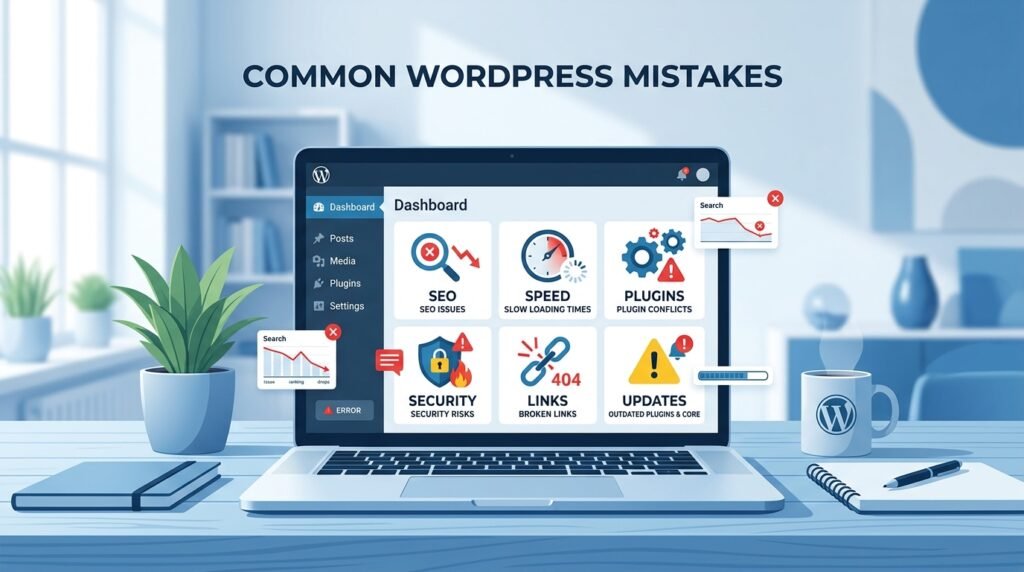
What Counts as a WordPress Mistake?
A WordPress mistake is any setup, SEO, speed, security, or technical issue that weakens your website performance.
Some mistakes happen during setup. Others appear later because the website is not managed properly.
Most WordPress problems usually fall into these categories:
| Type | Common Issues |
| Setup Mistakes | Wrong hosting, poor themes, plugin overload |
| SEO Mistakes | Weak internal links, bad structure, duplicate pages |
| Speed Mistakes | Heavy images, no caching, bloated themes |
| Security Mistakes | Weak passwords, outdated plugins, missing backups |
| Technical Mistakes | 404 errors, database issues, plugin conflicts |
The good news is that most of these issues are easy to fix once you know where to look.
The Biggest WordPress Mistakes New Site Owners Make
Many beginners focus only on design. As a result, they ignore the technical side of the website. That usually creates bigger problems later.
Choosing the Wrong Hosting
Your hosting provider affects speed, uptime, and security.
Cheap hosting may save money early on. Still, slow servers often lead to poor performance and higher bounce rates.
A good WordPress host should offer:
- Fast loading speed
- Daily backups
- SSL support
- Strong security
- Helpful customer support
If your website feels slow even after optimization, hosting may be the real issue.
Using a Heavy Theme
Many themes include animations, sliders, page builders, and features that most websites never need.
The problem is simple. Extra features increase loading time and make optimization harder.
Instead, choose a lightweight and mobile-friendly theme with clean code.
Installing Too Many Plugins
Plugins help add features quickly. However, installing too many plugins can create conflicts and reduce website speed.
Some poorly coded plugins also increase security risks.
Keep only the plugins you truly need. Also, remove inactive plugins because they can still create problems.
Ignoring Backups
Many users think backups are optional until something breaks.
A failed update, malware attack, or hosting issue can destroy your website data within minutes.
Automatic backups help restore your website quickly and reduce downtime.
Skipping Updates
WordPress core, plugins, and themes need regular updates.
Updates usually fix bugs, improve compatibility, and close security gaps.
Ignoring updates leaves your site vulnerable to attacks and technical problems.
Leaving Demo Content Live
Themes often install sample pages, placeholder images, and demo posts.
Some site owners forget to remove them before launch.
As a result, the website looks unfinished and unprofessional.
Not Using SSL
SSL protects user data and changes your site from HTTP to HTTPS.
Without SSL, browsers may label your website as unsafe. That damages trust and may affect rankings.
Using Poor Permalink Structure
Messy URLs confuse users and search engines.
Instead of random links, use clean URLs with clear keywords.
Example:
- Bad: yoursite.com/?p=123
- Better: yoursite.com/wordpress-mistakes
WordPress SEO Mistakes That Cost Rankings
Good content alone is not enough. Your SEO setup also affects rankings and visibility.
Not Using an SEO Plugin
SEO plugins help manage:
- Meta titles
- Meta descriptions
- XML sitemaps
- Schema settings
- Indexing controls
Without proper SEO settings, search engines may struggle to understand your pages.
Poor Site Structure
A confusing structure makes navigation harder for both users and search engines.
Your categories, pages, and blog posts should connect naturally.
For example, if you already have guides about technical SEO, website speed, or keyword research, link them naturally inside related sections.
Weak Categories and Tags
Too many categories and tags create thin archive pages with little value.
Use only relevant categories and keep your site organization simple.
Weak Internal Linking
Internal links help search engines understand your content relationships.
They also keep users on your website longer.
However, avoid forcing links into every paragraph. Keep them natural and useful.
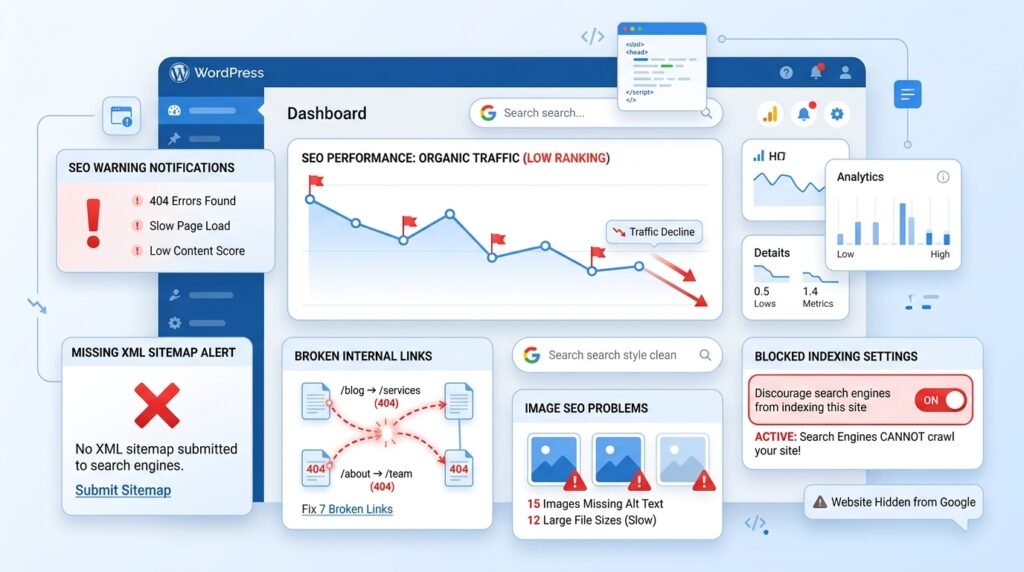
Blocking Search Engines
Some users accidentally block search engines while building the website and forget to remove the setting later.
Always check your WordPress reading settings before launching the site.
Missing Sitemap and Search Console
An XML sitemap helps search engines discover your pages faster.
At the same time, Google Search Console helps track indexing issues, clicks, and search performance.
Without these tools, SEO becomes harder to manage.
Poor Image SEO
Large images slow down websites.
Missing alt text also reduces accessibility and image search visibility.
Compress images before uploading them and use descriptive file names.
Thin or Duplicate Content
Short pages with little value rarely rank well.
Duplicate content can also confuse search engines and weaken rankings.
Focus on useful content that fully answers user questions.
Speed Mistakes That Slow Down WordPress Sites
Website speed affects rankings, conversions, and user experience.
Even a one-second delay can increase bounce rates.
Using Bloated Themes
Heavy themes load extra scripts and features that many websites never use.
Lightweight themes usually perform much better and are easier to optimize.
Plugin Overload
Too many plugins increase server requests and slow loading speed.
Review your plugins regularly and remove anything unnecessary.
Uploading Heavy Images
Large image files are one of the biggest reasons websites become slow.
Compress images before uploading them. Also, use modern formats like WebP whenever possible.
Using Poor Hosting
Even a well-optimized website struggles on weak hosting.
Reliable hosting improves server response time and overall stability.
No Caching Setup
Caching stores temporary versions of pages so they load faster for visitors.
Without caching, the server works harder for every request.
Ignoring Database Cleanup
Over time, WordPress databases collect spam comments, post revisions, and unused data.
Regular cleanup improves performance and keeps the site organized.
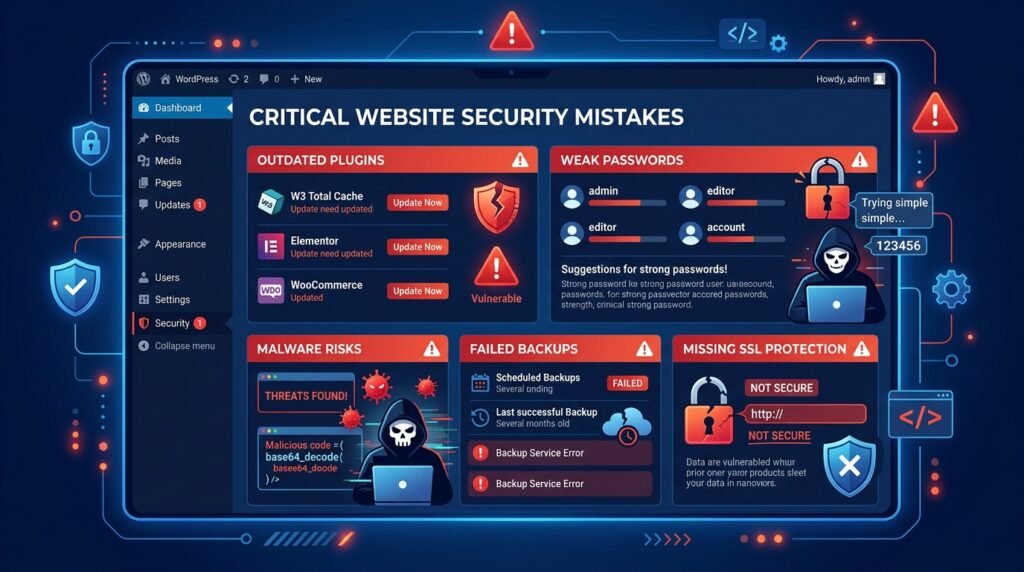
Security Mistakes That Put Your Site at Risk
Website security should never be ignored.
A hacked website can damage traffic, rankings, and business trust.
Using Weak Passwords
Simple passwords are easy targets for hackers.
Use strong passwords with letters, numbers, and special characters.
Installing Untrusted Plugins or Themes
Free themes from unknown websites may contain harmful code.
Download plugins and themes only from trusted sources.
Leaving Debug Mode Public
Debug mode helps developers find errors. However, public debug logs can expose sensitive information.
Disable debug mode on live websites.
Skipping Two-Factor Authentication
Two-factor login adds another layer of security.
Even if someone steals your password, they still cannot access the account easily.
Ignoring Backups
Backups are also part of website security.
If your site gets hacked, a clean backup can restore everything quickly.
Technical WordPress Mistakes That Break Pages
Some technical issues can make your website inaccessible.
White Screen of Death
This happens when the screen turns completely blank.
Plugin conflicts, memory issues, or theme errors usually cause this problem.
Critical Error Problems
Failed plugin or theme updates often trigger critical errors.
Recovery mode can help you regain access to the website.
Memory Limit Errors
Some plugins need more server memory than your hosting allows.
Increasing the PHP memory limit often fixes this issue.
Database Connection Errors
This problem usually comes from incorrect database settings or hosting issues.
Check your wp-config.php file and server status.
404 and Permalink Problems
Broken permalink settings often create 404 errors.
Resaving permalink settings inside WordPress usually solves the issue quickly.
Mixed Content Errors
Mixed content errors happen when HTTPS pages still load HTTP resources.
Update old URLs and force HTTPS across the entire website.
Cache Mismatch Problems
Sometimes visitors see outdated versions of your pages because of caching problems.
Clear browser cache, plugin cache, and CDN cache after major updates.
Mistakes That Hurt Business Results
A website should help your business grow. However, some mistakes quietly reduce leads and conversions.
No Contact Form
Visitors need a quick way to contact you.
Without a contact form, you may lose leads and customer trust.
No Email Capture
Email lists help bring visitors back to your website.
Even a simple newsletter form can improve repeat traffic and conversions.
Poor Mobile Experience
Most visitors now browse websites on mobile devices.
If your site looks broken on phones, users leave quickly.
No Analytics Setup
Without analytics, you cannot track traffic or user behavior.
Analytics tools help you understand what works and what needs improvement.
Weak Calls to Action
Every page should guide users toward a next step.
That may include:
- Reading another article
- Joining your email list
- Contacting your business
- Buying a product
Clear calls to action improve conversions.
How to Audit Your WordPress Site Step by Step
A basic audit helps you find problems early before they become serious.
| Audit Area | What to Check |
| Theme | Updated and mobile-friendly |
| Plugins | Remove inactive plugins |
| Speed | Test with PageSpeed Insights |
| SEO | Titles, indexing, internal links |
| Security | Passwords, updates, backups |
| Forms | Test contact forms |
| Mobile View | Check layout on phones |
You should audit your website regularly instead of waiting for problems to appear.
WordPress Mistake Checklist Before Launch
Before launching your website, review this checklist carefully:
- SSL is active
- Permalinks are clean
- Search engines are allowed
- XML sitemap works
- Images are optimized
- Mobile layout looks good
- Plugins are updated
- Backups are active
- Analytics is connected
- Demo content is removed
- Broken links are fixed
- Contact forms work correctly
Saving this checklist can help prevent common WordPress mistakes later.
Conclusion
Most WordPress mistakes are preventable. Small issues like weak hosting, outdated plugins, poor SEO settings, or heavy themes can slowly damage your rankings and user experience.
The good news is that fixing these problems does not require advanced technical skills. If you focus on speed, SEO, security, and regular maintenance, your website will stay faster, safer, and easier to grow.
More importantly, do not try to fix everything at once. Start with the problems that affect performance and trust the most. Then improve your website step by step.
FAQ
What is the most common WordPress mistake?
Using too many plugins is one of the most common mistakes because it can slow down the website and create compatibility issues.
How do I fix WordPress errors?
Start by checking plugins, themes, updates, and hosting settings. Most WordPress errors come from plugin conflicts or outdated software.
How often should I update WordPress?
You should check for updates every week. Security updates should be installed as soon as possible.
Do plugins slow WordPress down?
Yes. Poorly coded or unnecessary plugins can reduce speed and affect website performance.
Is staging needed for updates?
Yes. A staging website lets you test updates safely before applying them to the live website.